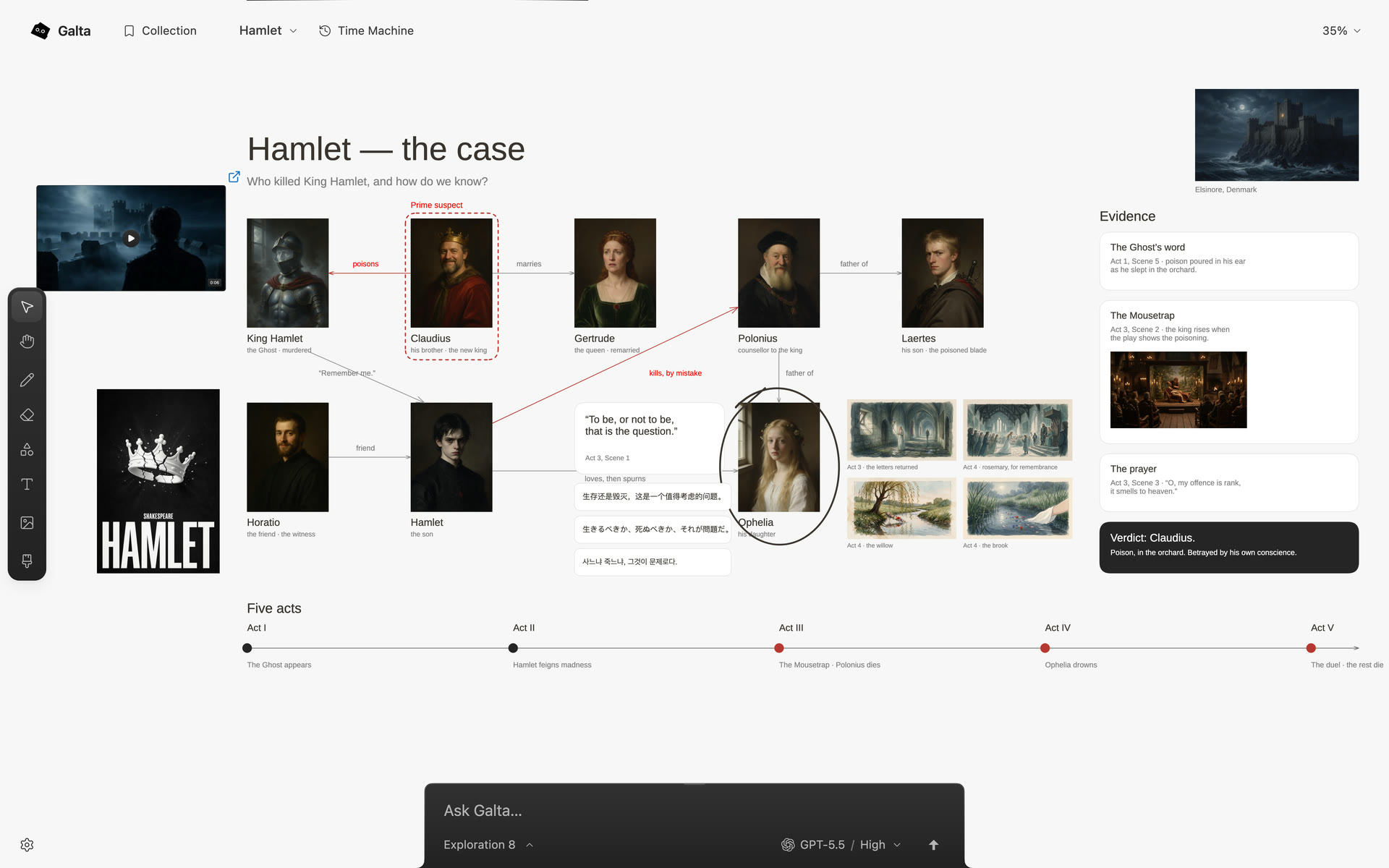
A shared surface for a visual task
A chat can describe an image or a layout. A canvas lets you put the references, notes and result next to each other. Galta gives a compatible agent access through MCP, the connection used to read the canvas and make changes through its tools.
You can work in Codex or Claude Code and keep the conversation there. Built-in Chat in Galta is a separate, optional choice using Codex. Connecting one is not a requirement to use the other, and neither is required for drawing or collecting references.
Connect the browser and your agent
- Check the installation page for current availability and requirements. The extension runs in Chrome or Dia; the Mac runtime connects it to agents.
- Once installed, open the Galta Mac app, choose Connect browser, and return to that browser profile.
- Open Settings on your canvas and choose Work in Codex or Claude Code. Follow the connection instructions for your agent there.
- Start the task in that agent and confirm that a requested change appears on the intended canvas. An idle connection is normal until an agent uses it.
Use your agent’s own account. An Aha Labs sign-in is optional identity and does not provide model access. For connection failures or incompatible versions, follow the connection help rather than repeatedly changing accounts.
Make the intent visible
For a first task, put three references and a note on a canvas. Ask:
“Read this canvas. Arrange the references into two possible directions and add a short explanation beside each. Keep the original references.”
Then point to one detail: “Keep this composition, but make the text quieter.” Selections are loose pointers. They do not hide the rest of the canvas or limit the agent to that type of element. Inspect the changed canvas and ask for a correction if the result misses your intent.
Know what is being shared
The whole canvas informs the agent’s task. A bound page can also provide context when you give the agent access to it. Review both before using private material. Your agent and any generation provider have their own account, billing and data policies; a locally stored canvas does not make remote inference local.
Generation is another optional capability. Connect your own provider under Generation in Settings to make images, video or audio. A Codex or Claude Code connection alone does not include those credits.
Judge the change on the canvas
Check the actual arrangement, text and media, not just the agent’s completion message. Revisit earlier work with Time Machine and export the canvas when you need a separate backup. The reference workflow walks through this from collection to alternative directions.
These are supported interaction patterns, not a claim that every prompt produces a finished design or that every compatible agent behaves identically.